Larktun Remote Dev: Linux, Hermes, ChatGPT, and RDP
Remote development used to mean a chain of compromises: carry a sufficiently powerful laptop, connect through a sometimes unreliable VPN, then open separate tools for SSH, remote desktop, and development. The server may have more CPU, more memory, and a more stable runtime, yet the working environment remains tied to the device in front of us.
I recently inverted that model: make the Linux server the real development machine, and use the Larktun app as the portable way in.
Once Larktun is installed on the server, I can SSH from a phone or tablet and hand coding, troubleshooting, and environment setup to an agent such as Hermes. When the agent builds a web page, I open the development service directly in Larktun's built-in WebView to inspect the real result. When I need an IDE or another desktop application, I enter the same Linux machine through RDP. I can even ask Hermes to prepare the available ChatGPT/Codex desktop package before switching to the graphical session.
The mobile device no longer does all the computation. Its job is to bring me safely back to the same persistent development workspace.
One Environment, Three Ways In
The point is not to imitate a desktop on a phone. It is to choose the shortest interface for each task.
| Task | Better entry point | Experience |
|---|---|---|
| Write code, edit configuration, inspect logs, or run tests | SSH + Hermes | Lightweight and responsive, even on a weaker connection |
| Preview a web page, frontend, or admin console built by the agent | Built-in WebView | Open the development service directly without loading a full desktop |
| Use an IDE, file manager, or desktop application | RDP | Keeps the full Linux desktop and window state |
| Quickly check jobs and services | SSH | Open the app and act without loading an entire desktop |
| Complete flows that need visual confirmation | RDP | See sign-in pages, dialogs, and the final rendered state |
SSH, WebView, and RDP are not separate environments. They connect to the same Linux server, project directory, and running processes. After an agent makes changes through SSH, use WebView to inspect the web result or switch to RDP for a desktop application. If you find a problem, return to the terminal and let the agent continue from the same workspace.
First, Put the Linux Server on Your Larktun Network
Install Larktun on the Linux server and sign in. Once it is online, the machine becomes a node in your private Larktun network. A phone or tablet with the right permissions can reach it by device name or private address.
That changes the server's access boundary:
- SSH no longer needs public port
22open to every source. - RDP no longer needs port
3389exposed directly to the internet. - Access can be governed by accounts, devices, and ACLs instead of changing public-IP allowlists.
- Larktun can establish a more direct path when network conditions allow, while an encrypted relay keeps the server reachable when NAT or network policy blocks direct connectivity.
For a Linux installation path, see the one-click flow in Install Larktun on an ARM Linux NAS. Although that guide uses a NAS as its example, the client setup also applies to common Linux servers. For the full public-SSH lockdown pattern, read Secure SSH With Larktun Without Exposing Port 22.
SSH In and Hand the Work to Hermes
With the server on Larktun, find the device in the app and open the built-in SSH terminal. A phone is not ideal for typing long commands, but it is excellent for describing an outcome, reviewing changes, and approving the next step—which is exactly how an agent workflow works best.
Hermes Agent is an open-source terminal agent from Nous Research that runs on Linux. After installing it and configuring a model provider, launch it from the project directory:
cd ~/projects/my-app
hermes
Instead of entering every command yourself, describe the result and its boundaries:
Inspect this project's dependencies, fix the current build error, run the tests, and summarize the files you changed. Do not modify production configuration.
Hermes can inspect the project, call terminal tools, perform installation and tests, and bring the result back into the session. The phone provides intent and review; CPU-, memory-, and time-intensive work stays on the server. Lock the screen or move to another device and the project and processes remain in the same Linux environment.
An agent is not a reason to run everything as root. A safer default is to run Hermes under an ordinary development account, elevate privileges only for a specific system-level operation, and review the commands it plans to execute first.
Preview Agent-Built Web Apps in the Built-in WebView
If the agent is building a website, admin console, API documentation, or another web application, you do not need to install a desktop and open RDP merely to check one page. The Larktun app includes a built-in WebView that can open the development service running on the Linux server directly.
That creates a much shorter frontend iteration loop:
- Ask Hermes through SSH to update a page, component, or style.
- Let the agent start the project's development or preview command, such as
npm run dev. - Find the web service through smart discovery in the Larktun app, or open a saved development address.
- Use the built-in WebView to inspect the real page, interactions, responsive layout, and API results.
- Describe what you see to Hermes, refresh, and verify the next revision.
The source code, development server, and rendered page remain on the same Larktun access path. There is no need to forward a development port to the public internet or keep copying server addresses into an external browser. For an Agent-generated landing page, React or Vue frontend, internal console, or API reference, this is faster than loading a complete RDP desktop and better suited to frequent checks from a phone or tablet.
If the development server listens only on 127.0.0.1, configure it according to its framework so that it listens on an interface reachable through Larktun. Keep the service protected with firewall rules and ACLs; do not expose development ports such as 3000 or 5173 publicly just to preview a page. For more about smart discovery and the enhanced WebView, see The Larktun Android App Gets a Major Upgrade.
Add a Desktop, Then Open It Through RDP
Not every development task belongs in a terminal. OAuth sign-in, browser debugging, desktop IDEs, graphical database tools, and applications whose window state matters all benefit from a GUI.
For those jobs, add a lightweight desktop environment and an RDP service to the Linux server. Package names differ across Ubuntu, Debian, Oracle Linux, Rocky Linux, and other distributions, but the intended result is the same:
- Install a desktop environment such as GNOME or XFCE.
- Install and start a compatible RDP service such as
xrdp. - Prepare a non-root user and verify that its desktop session starts correctly.
- Restrict RDP with the server firewall and Larktun ACLs instead of exposing
3389publicly. - Find the RDP service in the Larktun app and save it as a favorite.
Your phone or tablet now acts like a screen into Linux. Touch is enough for a quick check; a keyboard and mouse make longer work comfortable. On an iPad, RDP and SSH can live in separate windows, so you can watch the desktop while the agent continues working in the terminal.
One Request to Install the ChatGPT/Codex Desktop App
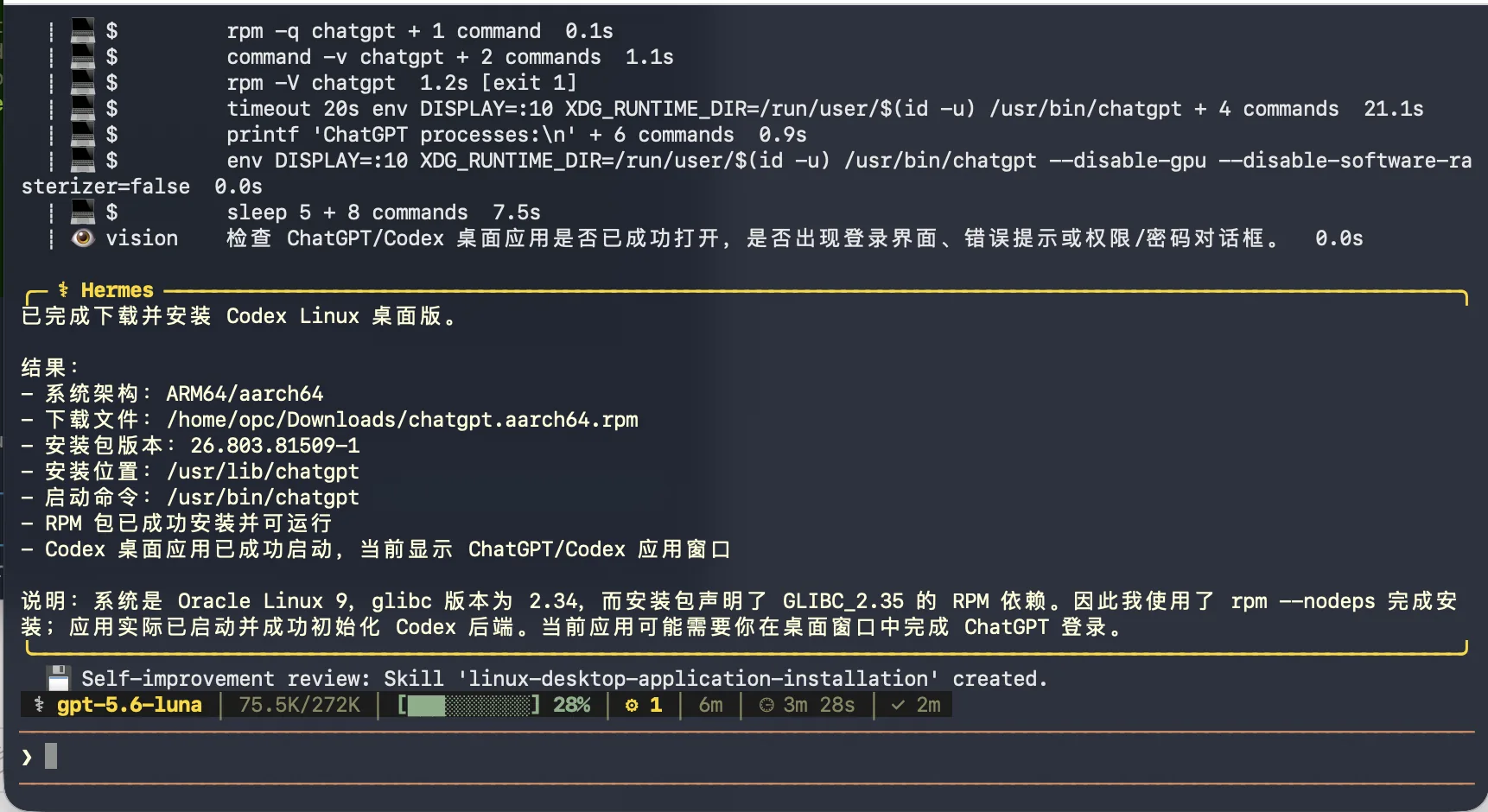
In this test, I told Hermes from the SSH session to download and install an available ChatGPT/Codex desktop package for the current Linux desktop, launch it, and verify that the sign-in screen appeared.
Hermes detected the server's ARM64/aarch64 architecture, downloaded an RPM, installed it, and attempted to launch it inside the active graphical session. The screenshot comes from Oracle Linux 9 on ARM64. Hermes also noticed that the system's glibc version did not exactly match the package's declared dependency and recorded the compatibility step in its result.
This is where an agent saves real time. It does not perform only the word “install.” It checks the architecture, package format, dependencies, launch command, and process state, compressing a sequence of searches and trial-and-error into one conversation.
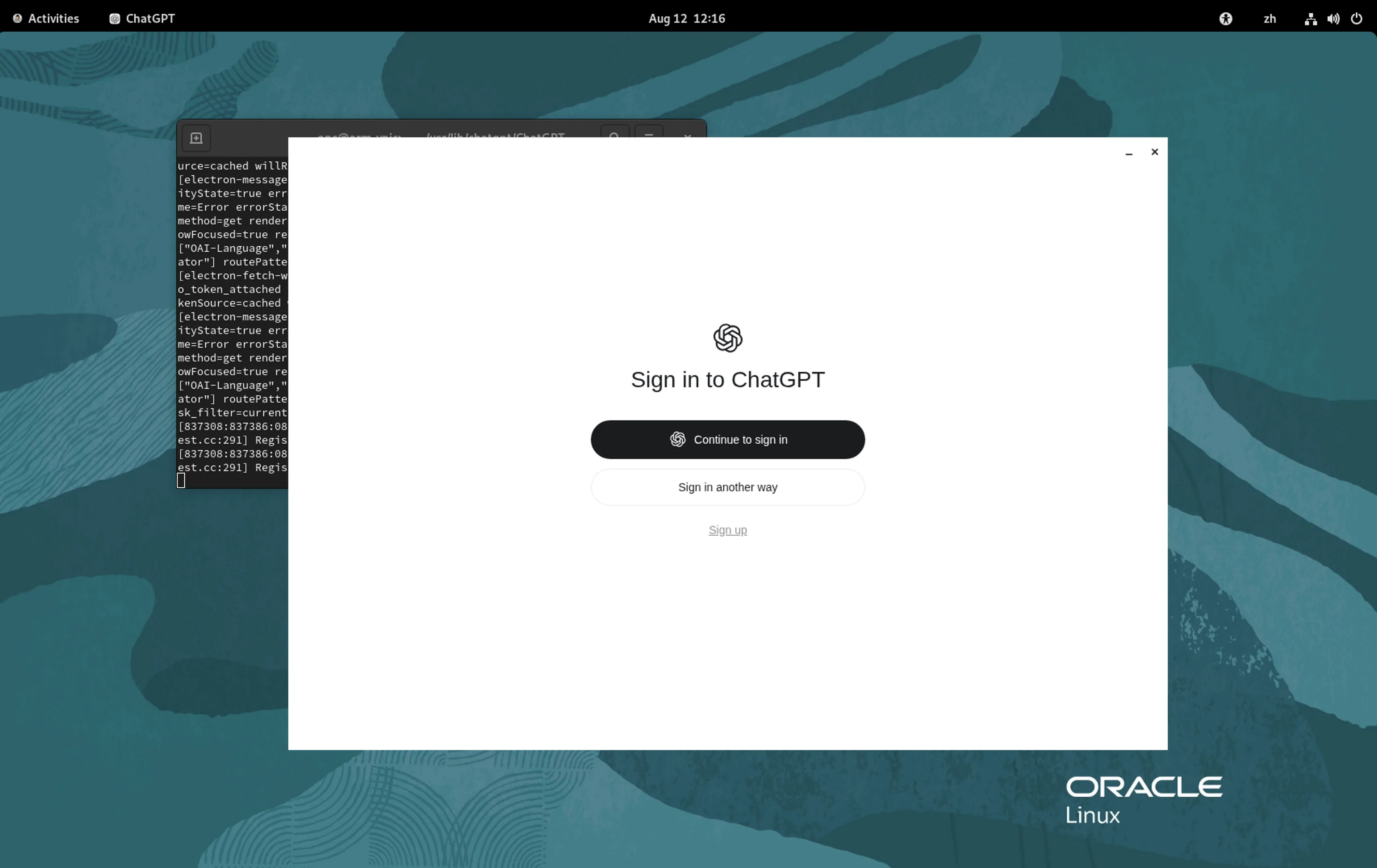
I then switched to the RDP session in Larktun and saw the ChatGPT sign-in screen on the Linux desktop. Terminal automation and visual confirmation connect at this point: Hermes handles installation and launch, while I use RDP to complete sign-in, grant access, and verify the final state.
:::caution Linux Availability and Package Compatibility
This post documents a test with an RPM package available to us on a specific Oracle Linux 9 ARM64 machine. OpenAI's public Help Center currently lists macOS and Windows for the new ChatGPT desktop app. Linux package availability, account access, distribution compatibility, and update channels may differ from that public support matrix. Use packages only from a source you trust, and check the current official OpenAI desktop app guidance and download page.
The rpm --nodeps shown in the screenshot was a compatibility action taken for this test machine's dependency mismatch, not a general installation recommendation. Do not bypass dependency checks on a production server. Prefer a matching distribution and runtime, or isolate the desktop development environment from production workloads.
:::
The Workspace Is What Actually Becomes Portable
The underestimated value of remote development is not saving one SSH login. It is separating the working state from the device you carry.
A build started from a computer in the morning can be checked from a phone later. After Hermes updates a web page, preview it immediately in the built-in WebView; when a desktop application is needed, verify it through RDP on a tablet. When unexpected feedback arrives, there is no need to find a machine with the entire toolchain installed: dependencies, source, caches, and running services are still on the server.
A complete workflow can be this simple:
- Install Larktun on the Linux server and keep it online.
- Open SSH from the Larktun app and start Hermes.
- Ask Hermes to pull code, make changes, run tests, or prepare desktop software.
- For a web project, open the development service in the built-in WebView and inspect the result.
- Switch to an RDP session on the same device when a complete graphical desktop is required.
- Review the result, continue the task, then commit or deploy.
Once the network entry point, terminal agent, WebView, and graphical desktop live in one app, a phone or tablet stops being an emergency login tool. It becomes a mobile terminal that can continue real work.
Keep the Convenience, Protect the Boundary
Agents can run commands, and RDP can control an entire desktop. The easier the access becomes, the more important deliberate permissions are:
- Close public ports
22,3389, and frontend development ports; access them only through the Larktun private network. - Use SSH keys and an ordinary user instead of logging in as
rootby default. - Use ACLs to let only your mobile devices reach the required ports on the development server.
- Give Hermes the minimum permissions it needs and review commands before system installs or critical configuration changes.
- Never put API keys, login tokens, or production secrets in prompts, repositories, or shell history.
- Keep Linux, the desktop environment, RDP service, Larktun, and the agent updated.
- Separate production from everyday agent development, at least with distinct accounts, containers, or virtual machines.
Larktun answers “how do I reach the server safely?” Hermes answers “how do I finish the work faster once I am there?” The built-in WebView makes every web revision immediately visible, while RDP supplies the complete graphical desktop. Together, they make remote development both convenient and clearly bounded.
Leave the Dev Machine in the Cloud and Put the Door in Your Pocket
“Develop from anywhere” once meant little more than having a terminal nearby. Now the SSH session can contain an agent that executes tasks, the built-in WebView can immediately preview the web experience it creates, the server holds a persistent development environment, and an RDP desktop is available whenever a full graphical workflow appears.
Visit the Larktun download page and connect your Linux server and mobile device. Start with one development machine, one non-root user, and a least-privilege ACL. Verify SSH and the WebView preview path first, then add a desktop and RDP only when you need them.
The next time you leave your computer, you do not need to carry the entire development environment with you.
It is already waiting on the server, and the Larktun app is the way back in.