Secure SSH With Larktun Without Exposing Port 22
I recently provisioned a free Oracle Cloud server with 4 CPU cores and 24 GB of memory. For a development server, that is generous enough for test services, build jobs, database experiments, and the occasional production-support workload.
But as soon as I needed remote SSH access, the classic question appeared: should I expose port 22 to the public internet?
My answer is clear: no.

Why Not Open Port 22 Directly
A cloud server usually comes with a public IP address. At first glance, allowing port 22 in the security group and running ssh user@public-ip seems simple enough. It works, but it also places SSH in the path of constant public internet scanning.
There is another practical issue: my home broadband connection does not have a fixed public IPv4 address.
With a stable office or home IP, you could allow only that address in the cloud firewall. But residential IP addresses change, and remote work often happens from hotels, mobile hotspots, temporary offices, or shared networks. That usually leads to one of two unpleasant choices:
- Allow
0.0.0.0/0:22, so the whole internet can try to connect. - Keep updating IP allowlists and lose access whenever the network changes.
For a development server, that creates unnecessary security noise. For a production server, it should not be the default operational entry point.
Where Larktun Fits
Larktun does not solve this by exposing another server port. Instead, it lets your server and your own computer join the same controlled private network.
Think of it this way: the public door stays closed, but authorized devices gain a secure internal path. SSH no longer has to face the whole internet. It only needs to accept traffic from trusted devices inside your Larktun network.
The topology below separates the two layers. The public network still exists for account sign-in, path discovery, and relay transport when needed. The actual SSH access happens inside the Larktun private network. When conditions allow, both sides can use IPv6 or other publicly reachable paths for direct P2P connectivity and lower latency. If IPv4/NAT restrictions get in the way, an encrypted relay path can keep the server reachable.
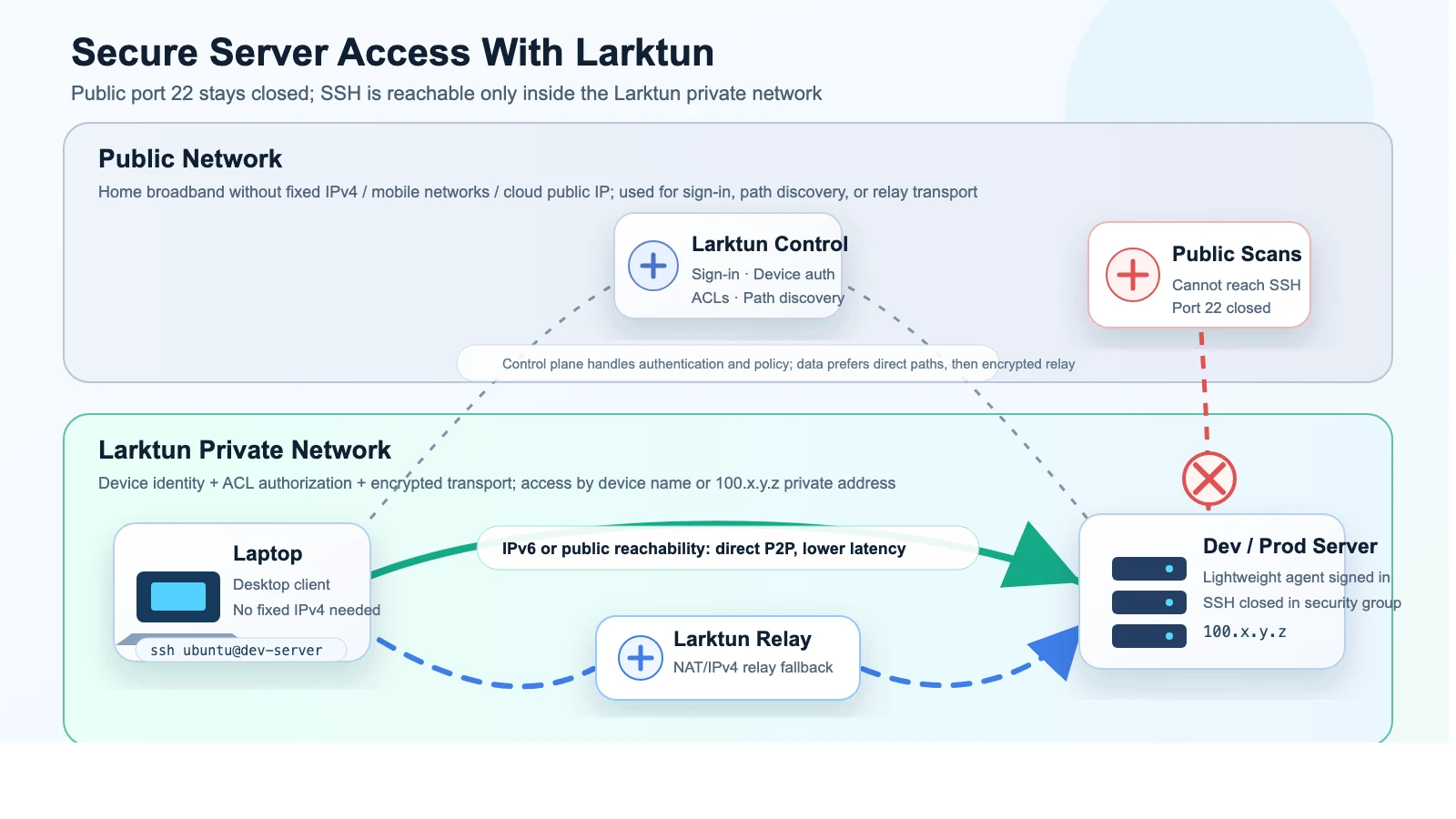
The setup is straightforward:
- Deploy the Larktun program on the development or production server and sign in.
- Install the Larktun desktop client on your laptop or desktop computer and sign in with the same account.
- Both devices appear in the same Larktun network and can reach each other by device name or private Larktun address.
- Keep public port
22closed in the cloud security group, and expose only the business ports that truly need to be public. - From your local machine, SSH to the server's Larktun address or device name.
At that point, the server no longer needs a public SSH entry point. The only clients that can reach it are authenticated, authorized devices inside your private network.
Is It Heavy on the Server
Many people worry that running an extra networking program on a cloud server may waste resources. For this use case, the Larktun program is small, and its memory footprint is low enough that it should not become a burden.
On a 4-core, 24 GB server, Larktun acts more like a lightweight secure entry layer. It runs quietly most of the time and becomes active when devices come online, connections are established, or traffic is forwarded. It does not require you to change your application architecture or move production services to a new platform.
It focuses on one job: deciding who can safely reach this server.
What the Access Flow Looks Like
Assume the cloud server has installed and signed in to Larktun, and your laptop has the desktop client running. After confirming that the server is online in the client or console, you can connect like this:
ssh ubuntu@dev-server
Or you can use the private address assigned by Larktun:
ssh ubuntu@100.x.y.z
The dev-server name and 100.x.y.z address are meaningful only inside your Larktun network. Someone scanning the cloud server's public IP will not see an open SSH entry point.
When the network conditions are good, Larktun can try to establish a direct path between devices, which keeps latency low. If both sides have IPv6, direct connectivity is often easier to achieve, and the experience can feel very close to reaching a nearby machine.
If direct connectivity is blocked by NAT, carrier networks, or office network policy, relay paths can keep the server reachable. In normal use, you do not need to manage the path yourself. The important part is that access is authenticated and constrained by permissions.
Production Still Needs a Security Baseline
Larktun solves the problem of avoiding public SSH exposure, but it should not replace the server's own security baseline. In production, I still recommend the following:
- Use SSH key authentication and disable password login.
- Give operators least-privilege accounts instead of using
rootby default. - Close public
22in the cloud security group and keep the server firewall aligned. - Use ACLs in Larktun to control who can reach production servers, instead of allowing every device to talk to everything.
- Use temporary access for temporary collaboration, and revoke it when the task is done.
- Keep the operating system and SSH service updated.
In short, Larktun moves the entry point into a private network. The server itself should still follow good security practices.
Useful for Both Development and Production
For development servers, Larktun makes access more flexible. You can work from home, the office, a hotel, or a temporary network without depending on a fixed residential public IP.
For production servers, it makes the operational entry point more restrained. SSH does not need to be public, the attack surface is smaller, and team access can be managed through accounts, devices, and ACLs instead of scattered public IP allowlists.
This pattern works well for:
- Accessing cloud development machines, build machines, and test environments.
- Managing production servers without exposing SSH to the public internet.
- Reaching private databases, Redis instances, and internal dashboards from a laptop.
- Temporarily granting a teammate access to a specific server.
- Getting lower-latency direct connectivity when IPv6 conditions are favorable.
A Better Tradeoff
What I like most about this setup is that it improves both safety and usability.
First, port 22 no longer has to be public. The server can keep running public services as usual, while SSH administration remains available only to authorized Larktun devices.
Second, the access experience stays simple. Install the desktop client on your laptop, deploy the lightweight program on the server, sign in to the same account, and both sides behave as if they are part of one private network. When network conditions are good, direct connectivity can also reduce latency.
For individual developers, this is a calm way to manage servers. For teams and production environments, it is a clearer operational entry point that is easier to govern.
The public door can stay closed.
The people who need access still have a secure way in.