Log in to Larktun with Tailscale on iPhone and iPad
You can connect the official Tailscale iOS app directly to Larktun without using a command line. You only need two things:
- An Auth Key created in the Larktun console
- The Larktun server address
https://hs.larktun.com
When you finish, your iPhone or iPad will appear as a device in your Larktun network.
The Auth Key in this guide must be created in the Larktun console, not in the Tailscale admin console. Treat the key like a device password: do not share it or include it in screenshots.
Before you begin
- A working Larktun account
- The official Tailscale app installed on your iPhone or iPad
- An internet connection on the iOS device
1. Create an Auth Key on the Larktun Devices page
- Sign in to the Larktun console.
- Enter your tenant or workspace.
- Open Nodes (Devices) from the left navigation.
- Click Create Auth Key to generate a key.
- Copy and save the key immediately. It is usually shown in full only once.
Make sure you do not copy a leading or trailing space or line break. For better security, create a separate key for this iPhone or iPad.
2. Choose Auth Key login in the Tailscale app
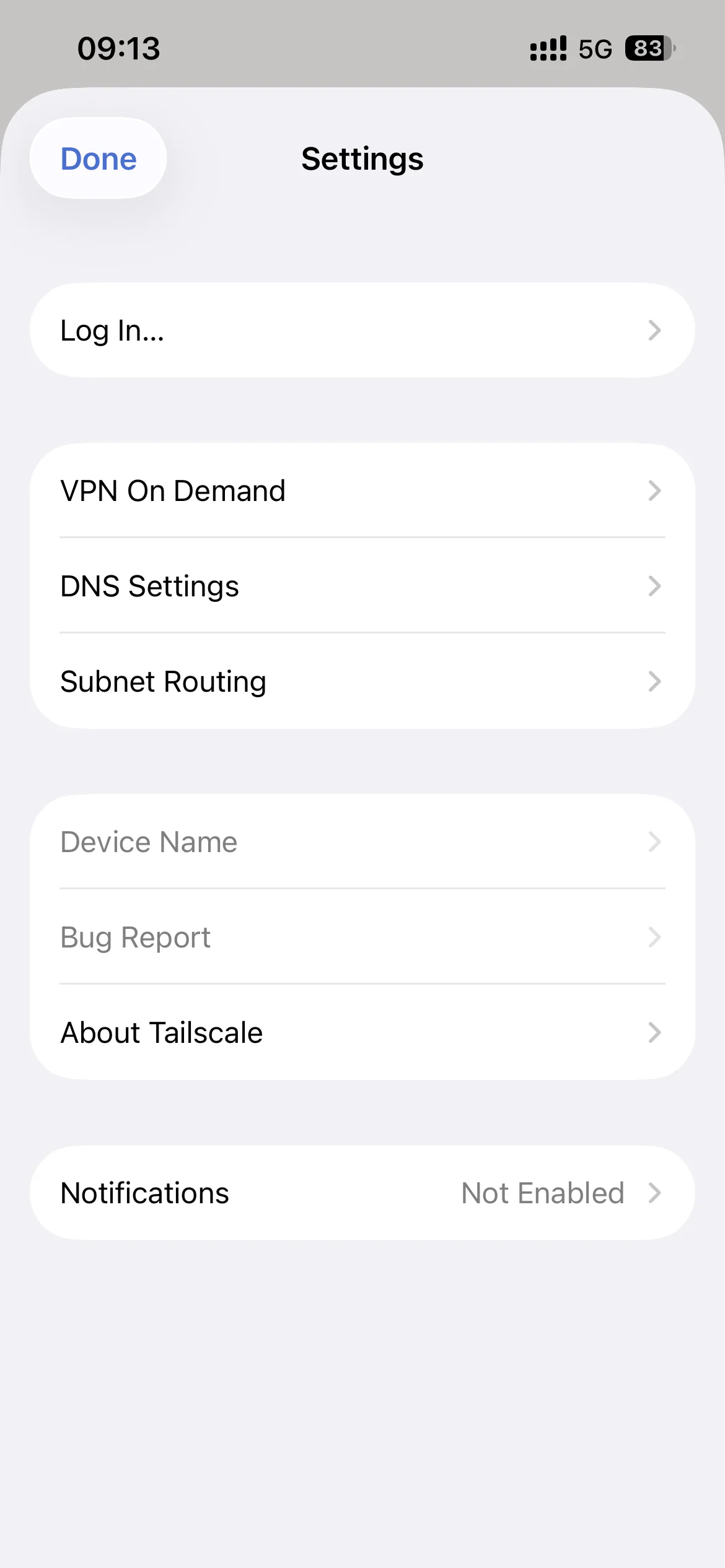
Open the Tailscale app, go to Settings, and tap Log In....
If the app is already connected to another network, choose Add Account... instead. You do not need to remove the existing account.
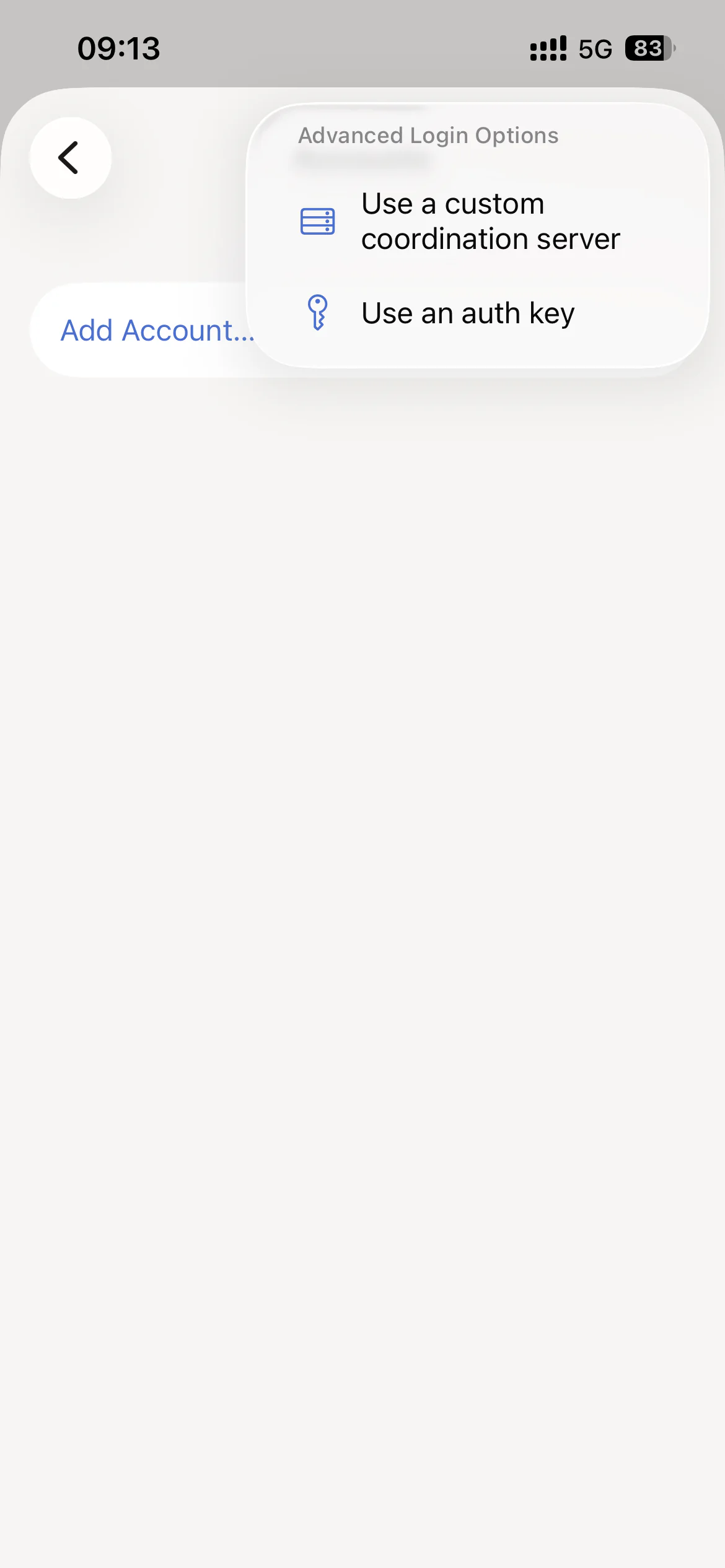
On the Add Account screen, open Advanced Login Options, then tap Use an auth key.
3. Enter the key and Larktun server address
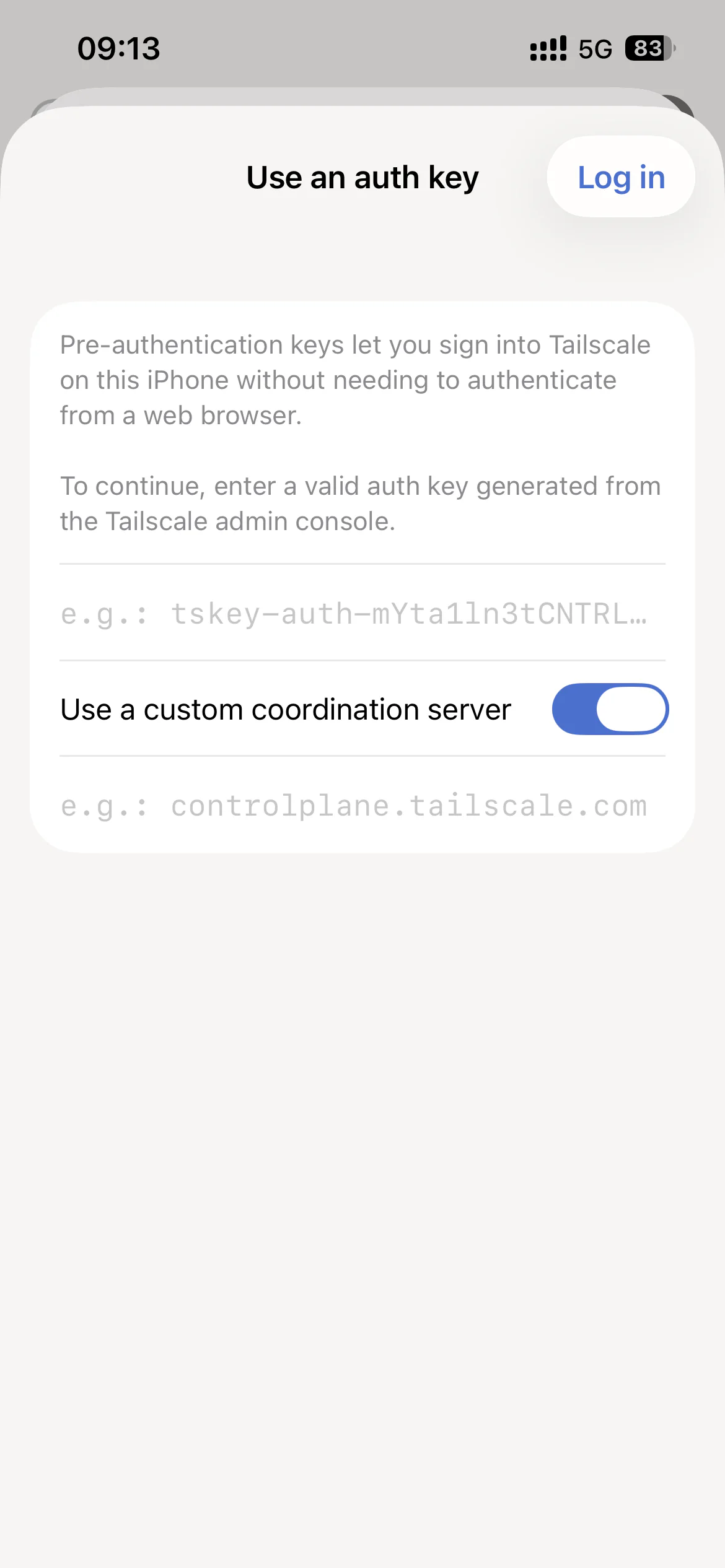
On the Use an auth key screen:
- Paste the Auth Key copied from the Larktun console into the first field.
- Turn on Use a custom coordination server.
- Enter
https://hs.larktun.comin the server field. - Check that the URL includes
https://and has no trailing spaces, then tap Log in in the top-right corner.
The first time you connect, iOS may ask for permission to add a VPN configuration. Tap Allow, then confirm with Face ID, Touch ID, or your device passcode.
4. Confirm that the device is online
After login succeeds:
- Return to the Tailscale app and confirm that the connection is enabled.
- Go back to Nodes (Devices) in the Larktun console and refresh the page.
- If your iPhone or iPad appears online, the setup is complete.
You can now use this iOS device to reach other devices and services allowed in your Larktun network.
Troubleshooting
Log in reports an invalid key
Copy the Auth Key again and check for extra spaces or line breaks. If the key has expired, was revoked, or has already been used, create a new one on the Larktun Nodes (Devices) page.
Login does not finish
Make sure the complete custom coordination server URL is https://hs.larktun.com, and confirm that the iPhone or iPad can access the internet. Do not enter larktun.com or omit https://.
Use an auth key is missing
Update the Tailscale app to a recent version, then open Advanced Login Options from the Add Account screen.
The iPhone or iPad does not appear in the console
Wait a few seconds and refresh Nodes (Devices). Make sure the key was created in the same tenant or workspace you are viewing. If you previously denied the iOS VPN configuration request, open system settings and allow Tailscale again.