Log into Third-Party Tailscale / Headscale with the iOS App
The Larktun iOS app supports more than Larktun account and key login — it also lets you join Tailscale and self-hosted Headscale networks. You do not need to migrate anything. Just generate an Auth Key in the Tailscale or Headscale admin console, paste it into the app, and you are in.
This page uses Tailscale as the example. If you use a self-hosted Headscale, the steps are almost the same — just replace the control server address with your own Headscale instance URL.
What Is Third-Party Login, and Who Is It For
Third-party login means the Larktun app joins a Tailscale or Headscale network as a node, even though that network is not managed by Larktun.
It fits these situations:
- You already run a stable Tailscale network and just want a good mobile entry point on your iPhone or iPad.
- You maintain a self-hosted Headscale on your own server and want to connect from mobile.
- You do not want to migrate your entire networking infrastructure. You just need to view devices, use SSH, SFTP, and Web access from your phone.
The core idea is simple: your network stays yours. The Larktun app is just a door you open from your mobile device.
Third-party login does not occupy the system VPN slot. The app joins the network internally, does not affect system proxy settings, and will not conflict with other VPNs.
Before You Start
- A Tailscale account (login.tailscale.com) or a running self-hosted Headscale instance.
- The Larktun iOS app (download from the App Store).
- Make sure your Tailscale / Headscale control server is reachable from your current network.
1. Generate an Auth Key in the Tailscale Console
Log into the Tailscale console at login.tailscale.com, go to Settings, and click Keys in the left sidebar.
On the Keys page, click Generate auth key and configure:
- Description: A note about this key's purpose, such as
Larktun iOS App. - Reusable: Enable this if you plan to use the same key on multiple devices. Otherwise, the key is consumed after the first login.
- Expiration: Set an expiration time. We recommend at least 30 days to avoid frequent key rotation.
- Tags: Optional. Attach ACL tags to this key as needed.
Click Generate key and copy the result (it starts with tskey-auth-). Save it now — you will not be able to see it again after closing this window.
If you use a self-hosted Headscale, generate a key with:
headscale preauthkeys create --user <username> --reusable --expiration 720h
The key format will be similar to nodekey:XXXXXXXXXX.
2. Fill in the Key and Server Address in the Larktun App
Open the Larktun iOS app. If you are not logged in yet, you will see the login screen. Tap Advanced Settings at the bottom (or tap the gear icon in the top right).
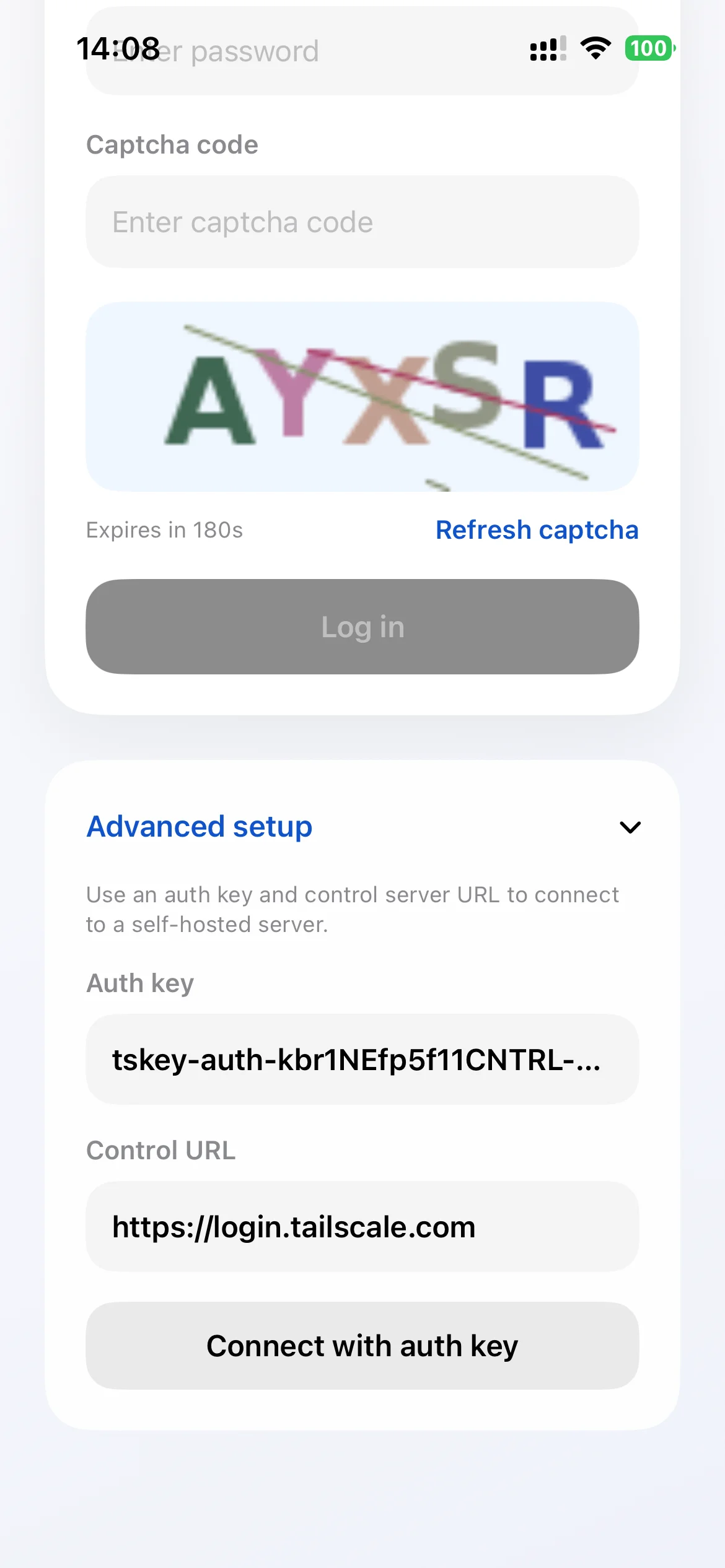
In Advanced Settings, you need to fill in two fields:
- Auth Key: Paste the key you generated in the Tailscale console (starts with
tskey-auth-). - Control Server: Enter the Tailscale control server
https://login.tailscale.com. For self-hosted Headscale, use your own instance URL, such ashttps://hs.yourdomain.com.
After confirming the information is correct, save and return to the login screen. The app will authenticate with the control server using the key you provided.
Once authenticated, your iPhone or iPad joins the corresponding Tailscale or Headscale network as a node.
3. What You Can Do After Logging In
After a successful login, the app fetches the list of devices you have permission to see in the network.
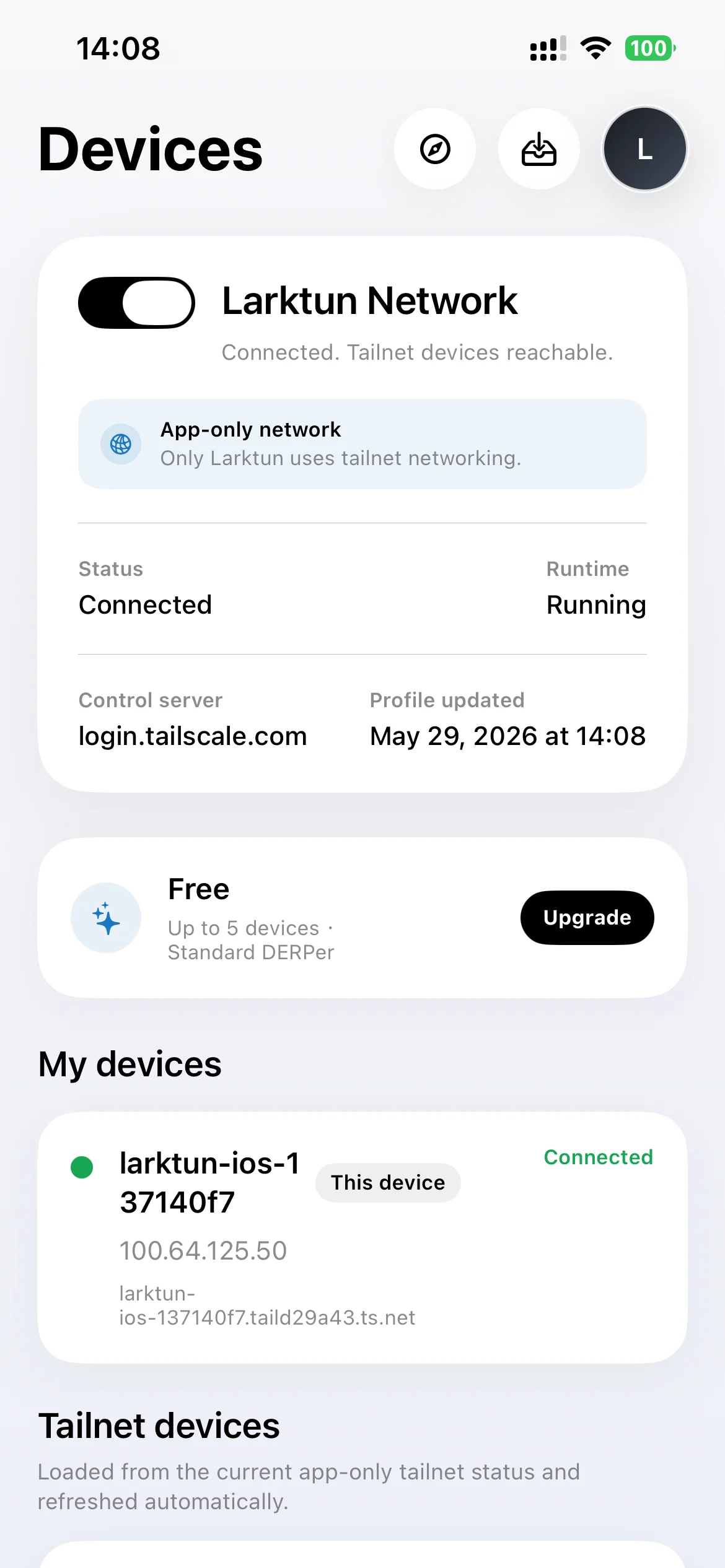
The device list shows each device's online status, IPv4 address, MagicDNS name, and quick action buttons. From the device page, you can:
- Check device status: See at a glance whether a device is online, along with its IP address and MagicDNS name.
- Ping connectivity check: Tap the Ping quick action on a device to immediately check reachability and latency.
- Copy IP address: Copy the device IP to the clipboard for use elsewhere.
The feature menu provides five core capabilities:
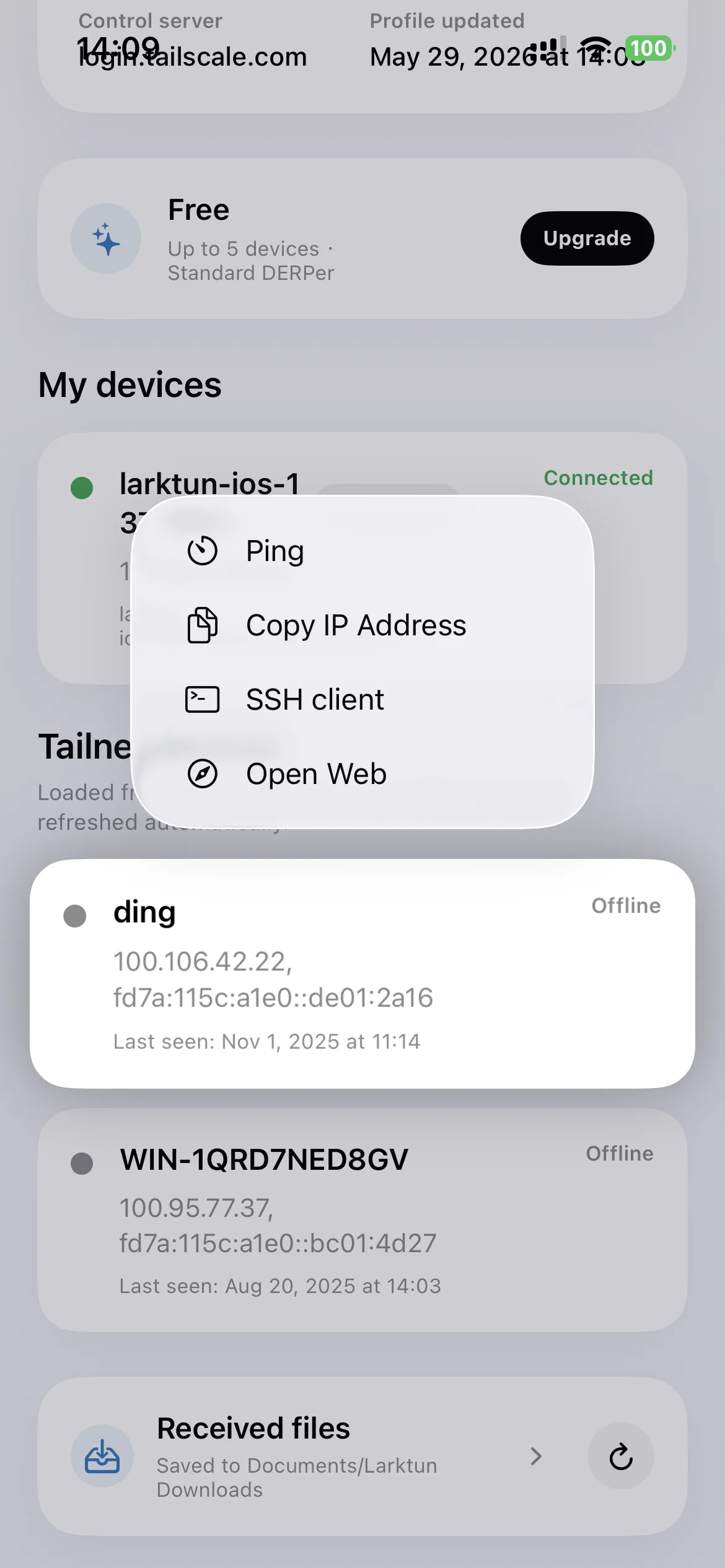
- SSH terminal: SSH directly into any server on the network. Enter the address, port, username, and authentication method, and the terminal runs inside the app. Servers do not need to expose public port 22.
- SFTP file management: Browse, download, and upload files. Useful for fetching logs, uploading configuration, and managing certificates.
- Web browsing: Open private Web services in the app's built-in browser — NAS admin panels, development Swagger pages, internal dashboards, and more.
- File inbox: View files sent to you by other devices on the network.
All actions run inside the app. No need to switch tools or enable system VPN.
Important Notes
- Key security: The Auth Key is your device identity credential. Keep it safe and do not share it with untrusted parties. If a key is leaked, revoke it in the Tailscale / Headscale console.
- Network permissions: The app joins the network with the identity tied to the key. Permissions are entirely controlled by the ACL rules you set in your Tailscale or Headscale admin console.
- Key expiration: Once a key expires, the app will be unable to connect. Generate a new key in the console ahead of time and update it in the app.
- Control server reachability: If your self-hosted Headscale does not have a public endpoint, make sure your phone can reach the Headscale server address and port from your current network.
- Cross-platform consistency: The same third-party login capability is built into the Android version. Apps on different platforms can share a key (if it is Reusable), or each can use its own.
Quick Troubleshooting
- Cannot log in after filling in the key and server: check that the key has not been revoked or expired; confirm the server address is correct and includes the
https://prefix; make sure your phone can reach the control server. - Device list is empty after login: verify the key has permission to see those devices, and check your Tailscale / Headscale ACL rules.
- Cannot SSH to a target: confirm the target is online and ACL allows your node to access its SSH port (usually 22).
- Web page fails to load: make sure the target service is running, the port number is correct, and ACL allows that port.
- Key expired: generate a new key in the Tailscale / Headscale console, then update it in the app's Advanced Settings. No need to uninstall the app.
Next Step
- Learn more about Larktun iOS app features
- See Create Your First Secure Access Path
- Read Desktop Client Operations
- Reference ACLs Introduction