Install Larktun on an OpenWrt Router
Larktun can be installed directly on OpenWrt routers. Once installed, the router itself joins the Larktun network as a node, and you can go on to configure subnet routes so other devices on the local network can be reached remotely without installing a client of their own.
This guide walks through installing Larktun on OpenWrt with the online script, generating an Auth Key, and completing the first login.
Before You Start
- The router is running OpenWrt and has working internet access.
- You can log in to the router over SSH (via LuCI under System > Administration > SSH Access, or any terminal tool).
- You have registered and signed in to the Larktun Console.
- The router has enough free storage to install
larktunandlarktund(a few MB of free space is recommended).
1. Install with the Online Script
After connecting to the router over SSH, run the following command to download and execute the install script:
wget -O /tmp/larktun.sh https://download2.larktun.com/openwrt/install.sh && sh /tmp/larktun.sh
The script automatically detects the router's CPU architecture, downloads the matching Larktun binaries, and sets up the base service configuration. Installation progress is printed to the terminal in real time.
Once the installation finishes, the terminal shows a screen similar to the one below, confirming the install completed and showing the command format you'll need for login:
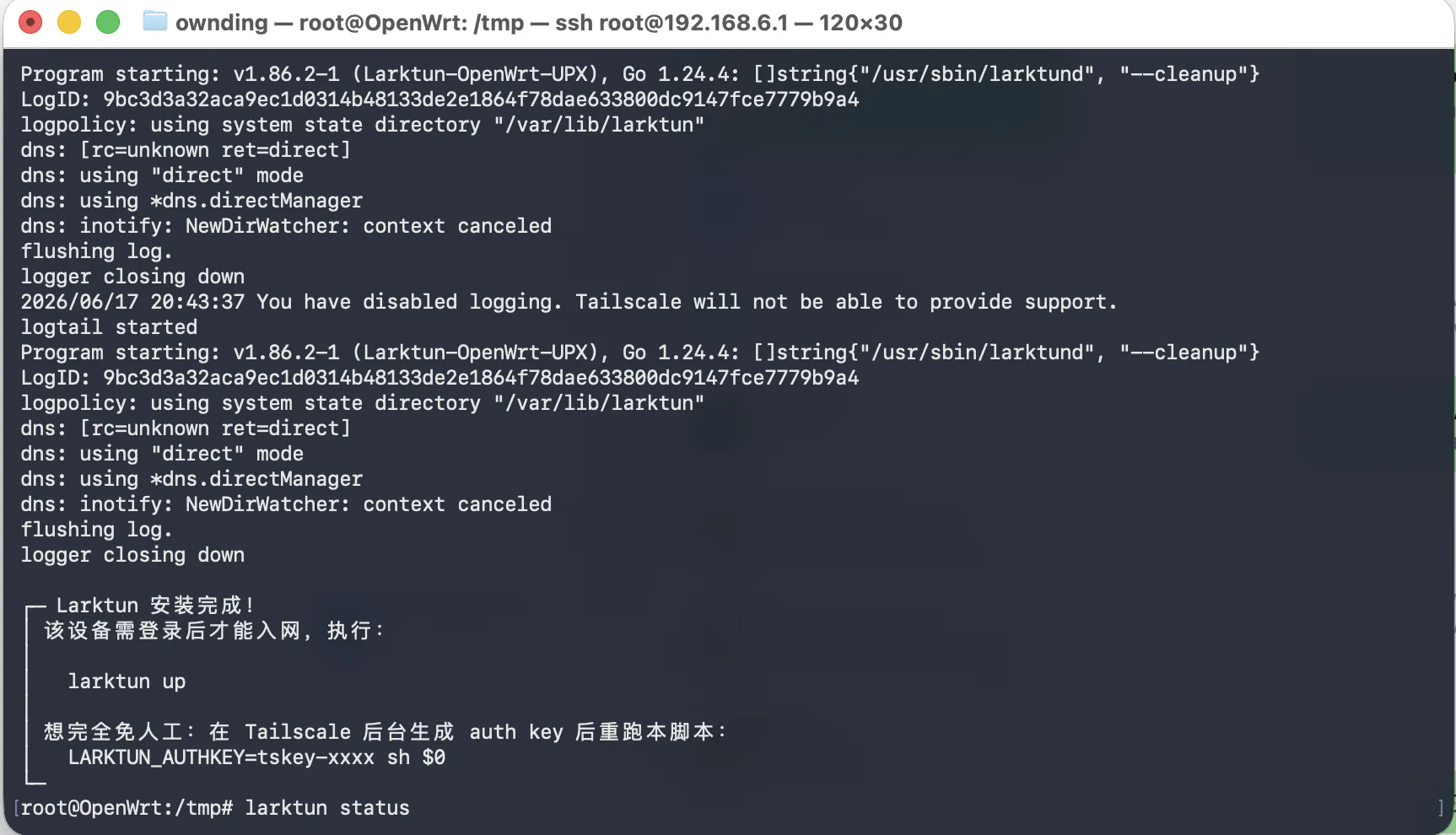
If wget fails with a certificate error or times out, check that the router's system clock is correct and that it can resolve and reach download2.larktun.com.
2. Generate an Auth Key in the Console
You'll need an Auth Key to connect the router to your Larktun network:
- Sign in to the Larktun Console and enter your tenant or workspace.
- Open the Machines (Nodes) page from the left navigation menu.
- Click Create Auth Key to generate a dedicated key for this OpenWrt router.
- Note: for security reasons, the Auth Key is only shown in full once. Copy and store it securely, and avoid pasting it into public chats, tickets, or screenshots.
3. Log In with the Auth Key
Back in the router's SSH session, replace <Your Auth Key> with the key generated in the previous step and run:
larktun up --login-server=https://hs.larktun.com --auth-key=<Your Auth Key>
--login-server must point to the Larktun access control plane (e.g., https://hs.larktun.com; refer to the console's setup instructions for the exact URL).
Verify the Connection
After running the login command, go back to the Nodes page in the Larktun console and refresh it to confirm this OpenWrt router shows up as online. Once it's online, you can continue with Approving Subnet Routes to publish the LAN behind the router into the Larktun network, so other devices can be reached remotely without installing a client.
Troubleshooting
wgetfails or times out: check that the router can reach the public internet, and that no firewall rule or ad-blocking plugin is blocking the download.- Out of storage space: free up unused packages or logs before retrying — OpenWrt devices typically have limited storage.
- The router never comes online after
larktun up: confirm the Auth Key hasn't expired or already been used, and double-check that--login-serveris complete and correctly spelled. - Larktun doesn't start after a reboot: check whether the install script registered
larktundas an OpenWrt boot-time service (init.d / procd). - Still stuck: see Common Issues, or include the router model, firmware version, and full command output when filing a support ticket.